Teams Admin Center’s UI library had drifted away from Fluent, Microsoft’s design system. I co-led the work to decide, component by component, where to follow Fluent and where admins needed something different.
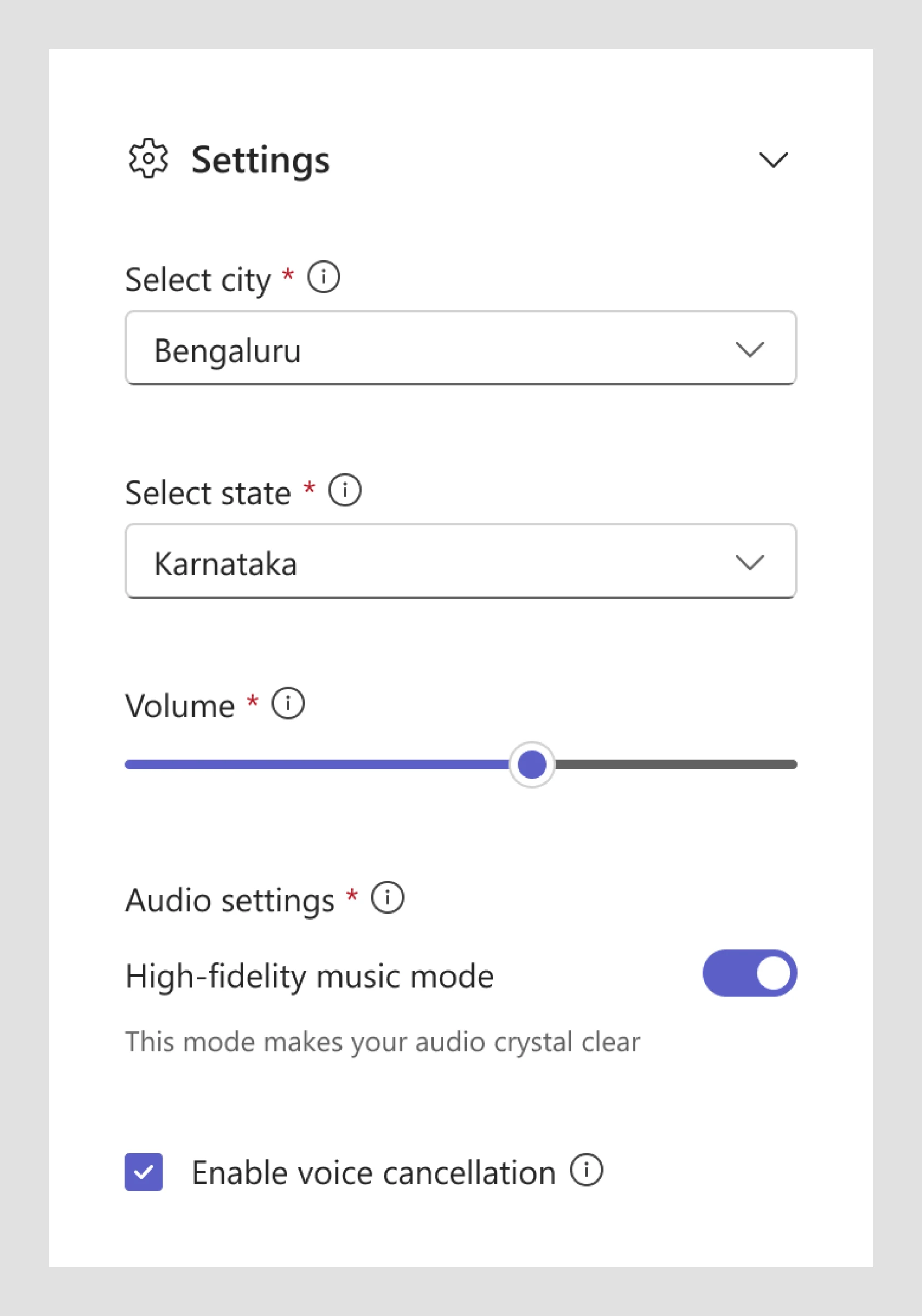
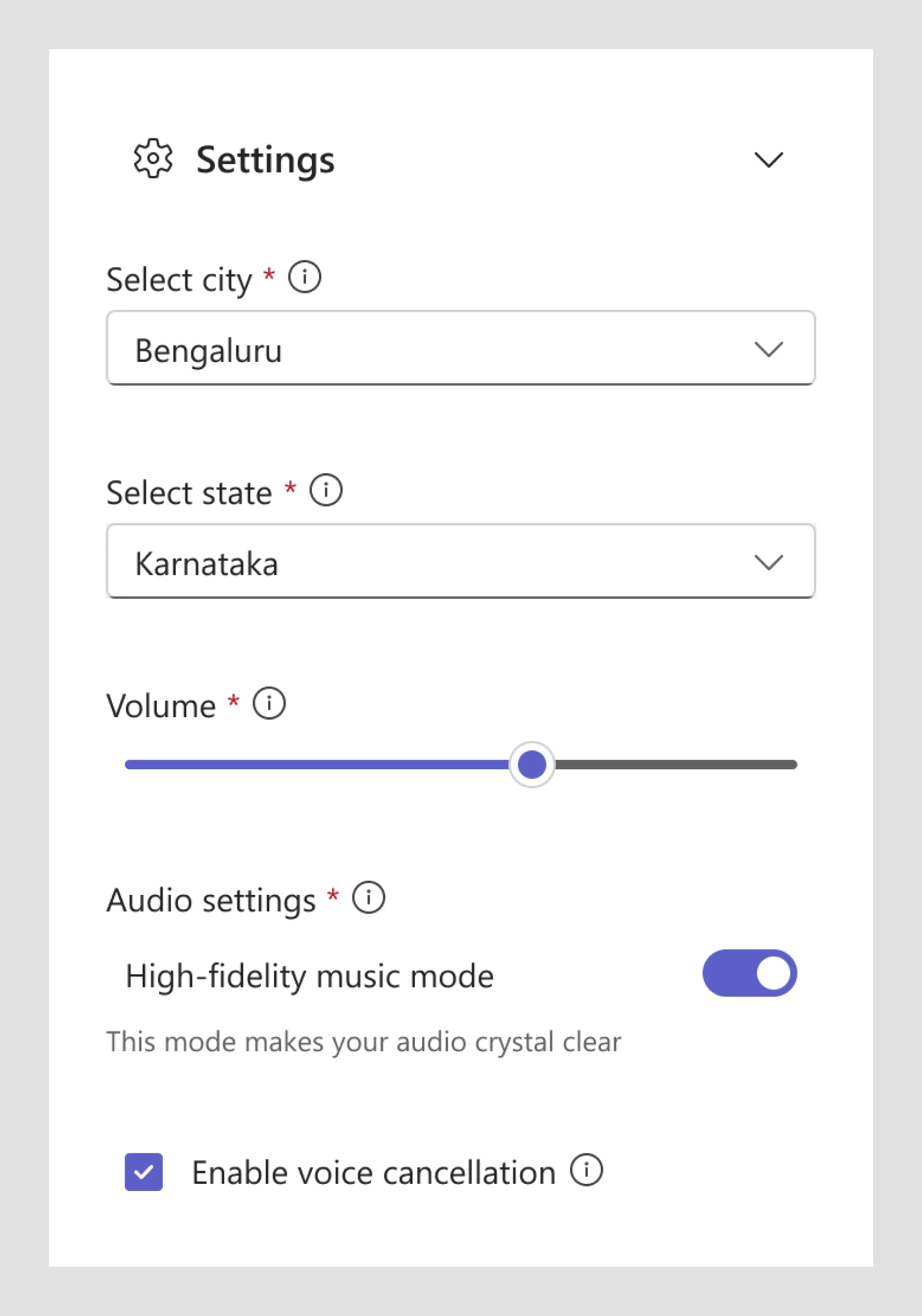
The terms are technical, so almost every setting explains itself.
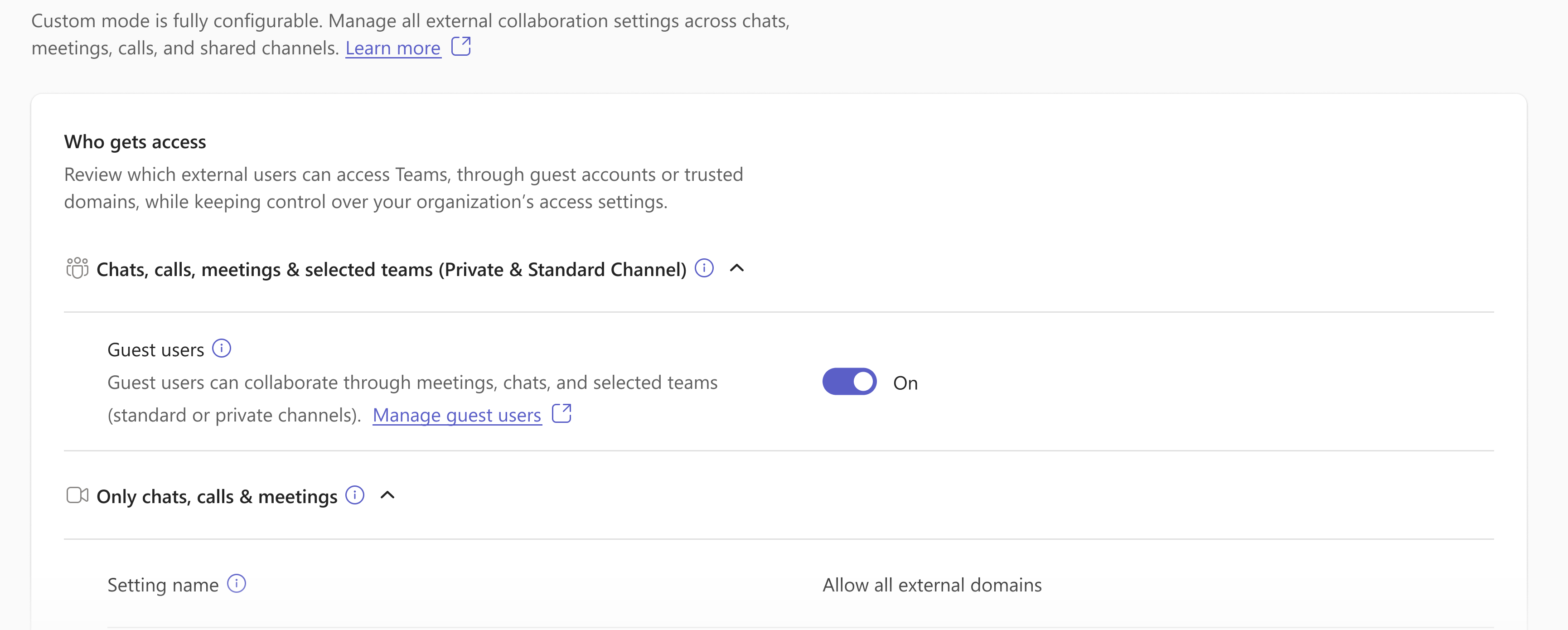
2 Links to the docs
Deeper help sits right next to the setting.
3 Switches, in bulk
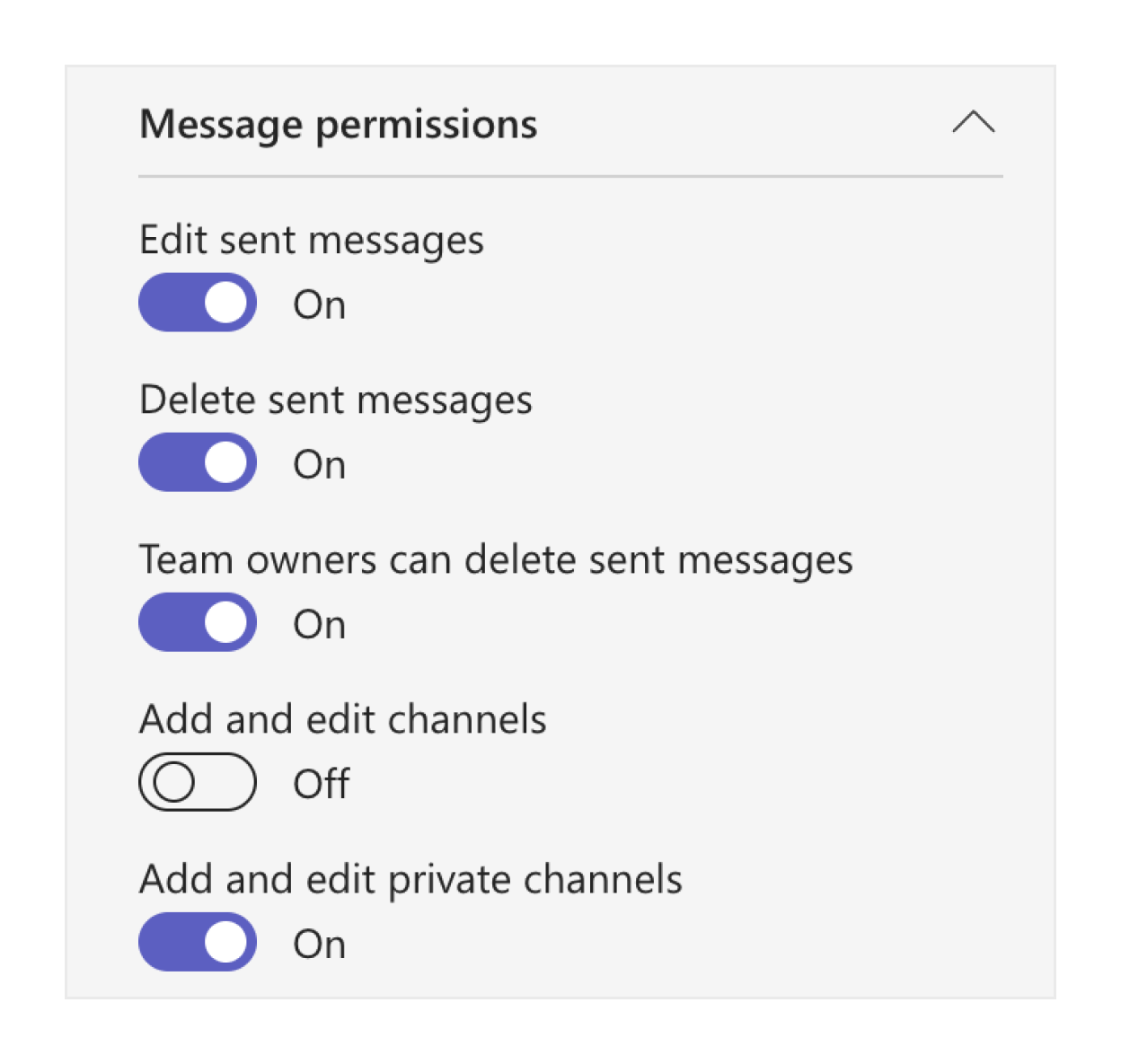
Often changed for many teams at once.
The design system
A design system is a kit of shared parts, like LEGO bricks: buttons, switches and dropdowns that fit together, with rules for using them.
Teams Admin CenterWhat only Teams admins need
Admin design system layerWhat Microsoft’s admin tools share
FluentMicrosoft’s design system
Improve a brick at the bottom, and everything above it gets the improvement.
The problem
Fluent wasn’t built for admin work, so designers filled the gaps themselves. Take one dropdown.
All domains
In the library
No status icon.
All domains
Copy 1
Detached (copied out of the library), icon added.
All domains
Copy 2
Copied from copy 1. New spacing.
All domains
Copy 3
Copied again. Icon moved.
Three versions, none written down. Multiply that by every component: outdated parts, colours that failed contrast, and code on Fluent versions no longer supported.
The approach
Not “just use Fluent”. Not another design system. A decision for each of the library’s 36 components, written down with its reason.
17Adopt
Use Fluent as it is.
9Adapt
Change Fluent, only for a real admin need.
10Invent
Build our own, only when Fluent has nothing.
Nearly half the old library could simply be retired in favour of Fluent.
The stack rank
Our component
Call
Closest in Fluent
Actions
Adopt
Button
Alert
Adopt
Message bar
Avatars
Adopt
Avatar
Banner
Invent
Carousel
Breadcrumb
Adapt
Breadcrumb
Buttons
Adopt
Button
Card
Invent
Card
Checkbox
Adopt
Checkbox
Chiclet
Adapt
Tag, Tag picker
Coach mark
Adopt
Popover, Teaching popover
Copilot prompt pill
Invent
None
Dialog
Adopt
Dialog
Dropdown
Adopt
Dropdown
Input
Adopt
Input
Key value
Adapt
CAB & Multicount
Link
Adopt
Link
Navigation
Invent
Nav
Picker
Adapt
Menu, Dropdown
Pills
Adopt
Badge
Progress
Adopt
Spinner, Skeleton
Radio
Adopt
Radio group, Switch
Rating
Adopt
Rating
Search
Adopt
Search
Section
Adapt
Label, Accordion, Module
Side panel
Invent
Drawer
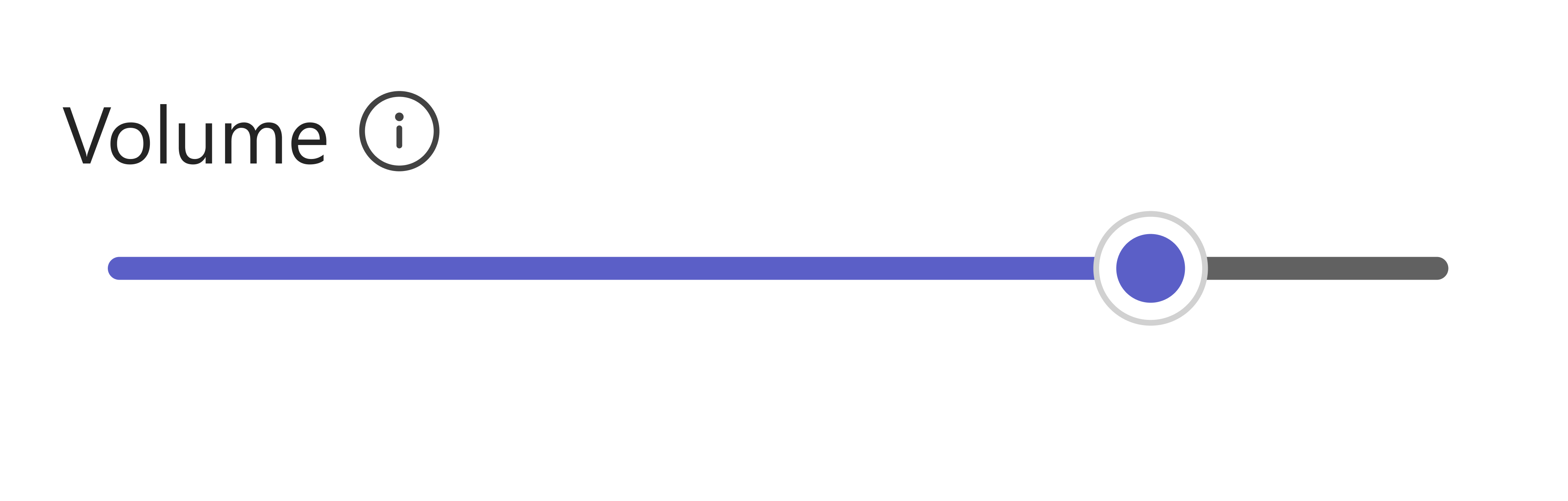
Slider
Adapt
Slider
Status labels
Adopt
Status indicator
Table
Invent
Toolbar, Data grid
Tabs
Adapt
Tab list
Tags
Adopt
Tag
Template
Invent
None
Text line
Invent
None
Title and description
Invent
None
Toggle
Adapt
Switch
Tooltip
Adapt
Tooltip
Widgets
Invent
Card
Three examples
Design system calls are subjective. The right one depends on the product, its users and how the team works, so the same component can be Adopt for one team and Invent for another. Three of ours:
Switch: a new component
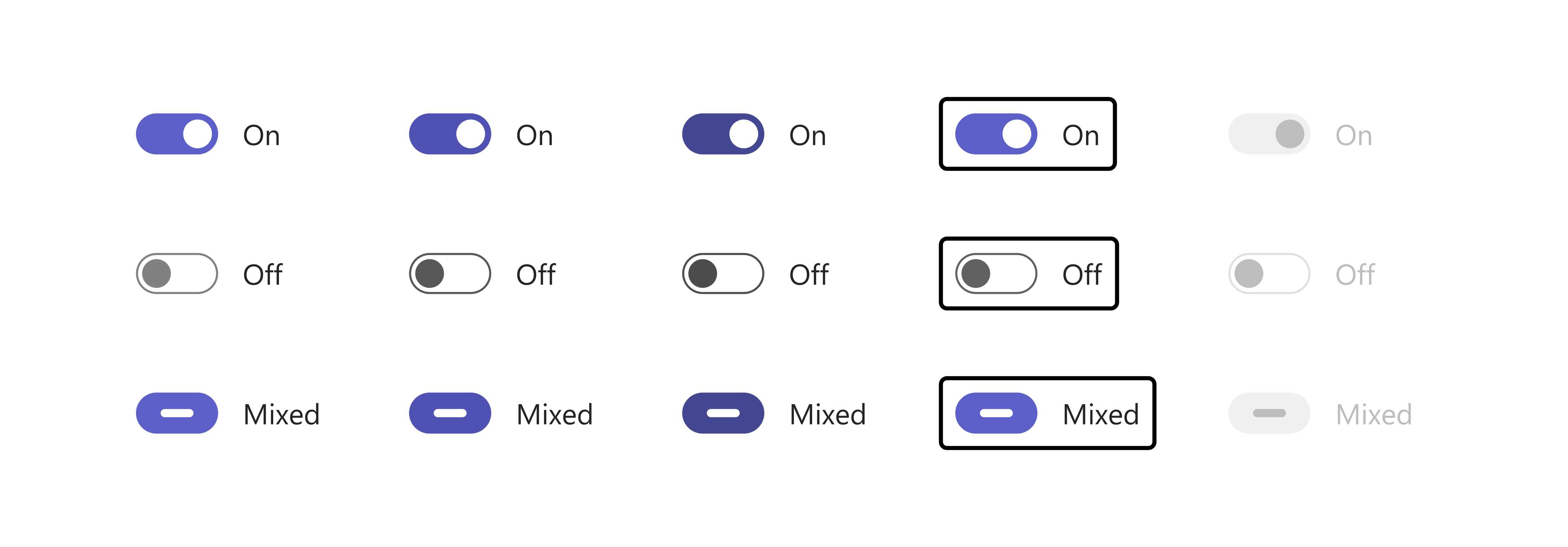
Admins often edit several teams at once. When those teams disagree, Fluent’s switch can only say On or Off. Without an in-between state, we were functionally lacking.
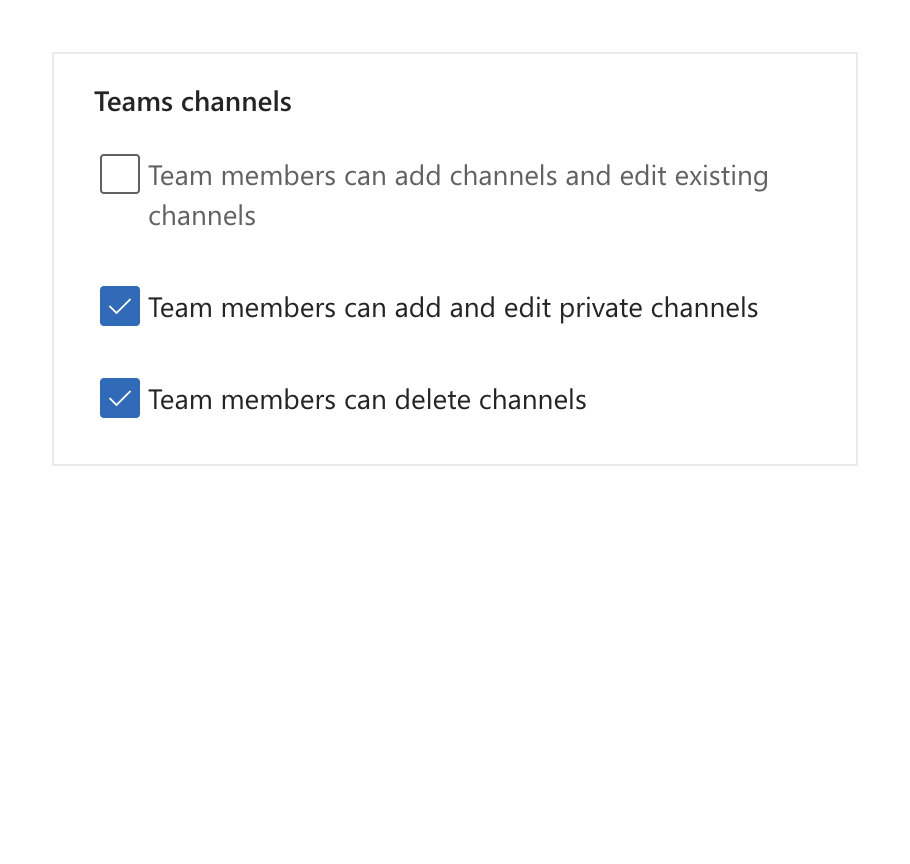
Fluent’s answer is a checkbox, as the Microsoft 365 admin center uses. But every setting in Teams Admin Center is a switch, and swapping them all would disrupt a huge number of admins.
So we built a net new component, outside Fluent: a switch with a Mixed state, made from Fluent’s own colours and accessibility rules, and documented.
Team A
Edit sent messagesOn
Delete sent messagesOn
+
Team B
Edit sent messagesOff
Delete sent messagesOn
=
Team A + Team B
Edit sent messagesMixed
Delete sent messagesOn
Mixed where the teams differ, On where they agree.
Cost: one more component we maintain ourselves.
Padding: kept as Fluent’s
Fluent leaves space around some components for the keyboard focus ring. At rest, a form’s left edge goes ragged.
Lined up looked better, and the Fluent team agreed. We still kept Fluent’s spacing: hand-made fixes drift between teams, and when Fluent fixes it, every screen gets the fix.
Cost: a ragged edge, for now.
Table checkboxes: fixed once
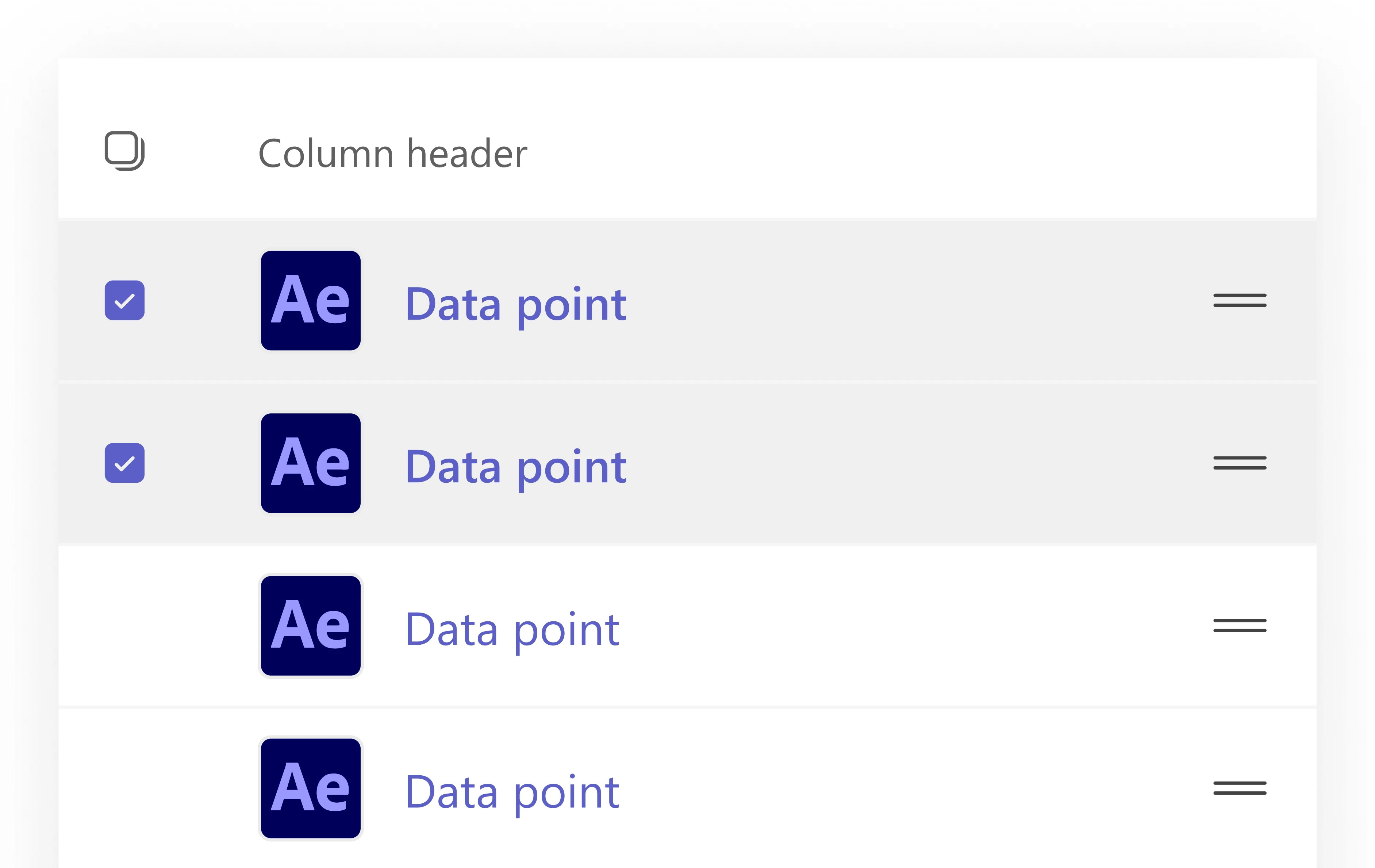
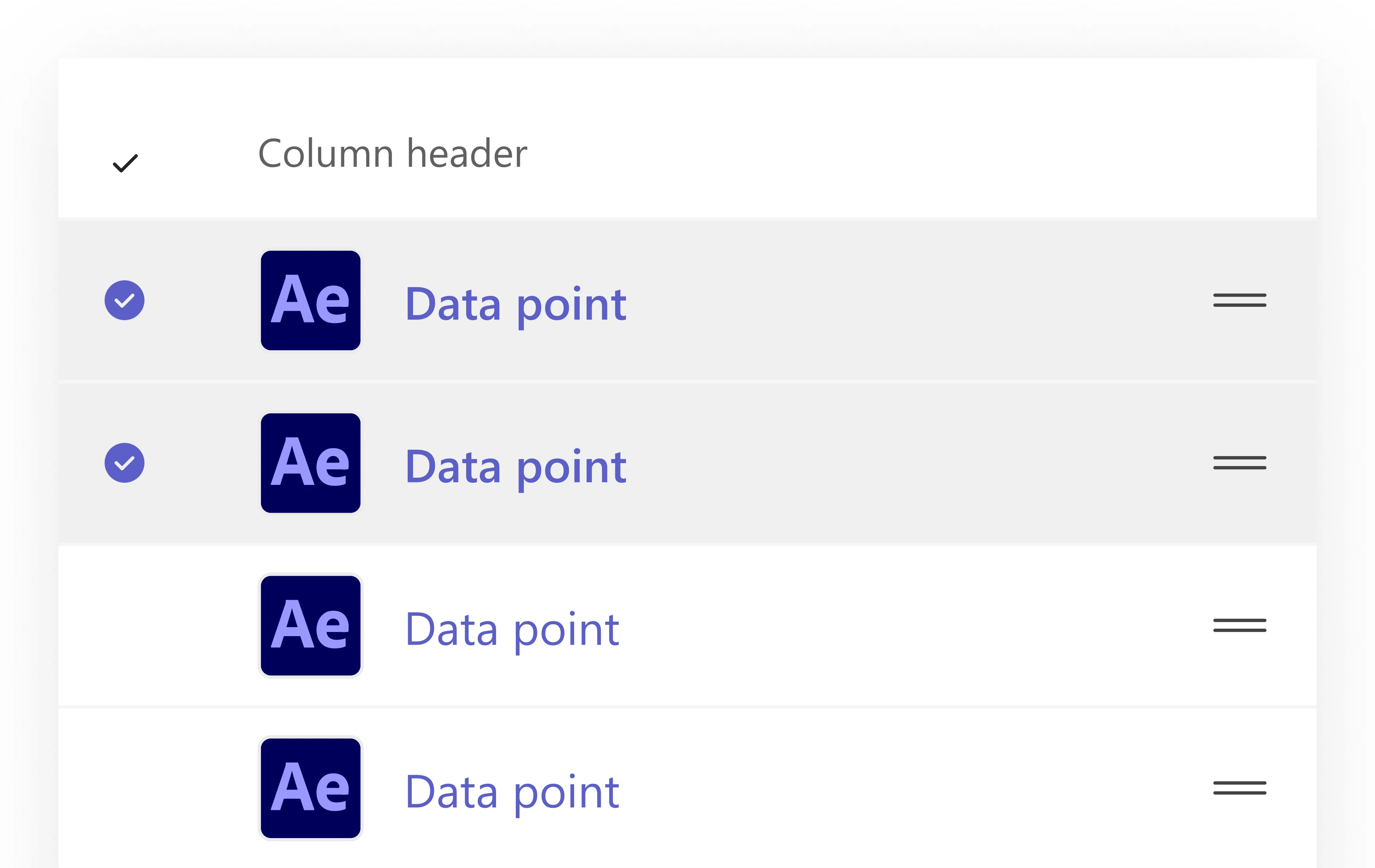
A quality audit found a select-all that didn’t look clickable, and round checkmarks that suggested picking only one row.
Selecting rows in a table
BeforeAfter
Before. Round checkmarks; a select-all that hides.
After. Square checkboxes; a real select-all.
We fixed the table component, not each page, so every table got the fix.
More decisions
Dropdown Adopt
Ours caused the three copies above.
Tabs Adapt
A clearer selected tab, for accessibility.
Tooltip Adapt
Room for a “Learn more” link.
Section Adapt
Three components merged into one.
Card Invent
Ours, with fewer variants.
Side panel Invent, then Adopt
The need was size, so Fluent’s drawer in three sizes.
Keeping it consistent
Smallest parts first
Buttons and checkboxes before tables, since fixes flow up into everything built from them.
Named colours, not codes
Fluent’s named colours replaced hard-coded ones, so one change reaches every screen.
A hard-coded colour code, replaced by Fluent’s named colour: #5B5FC7 became Brand Background
One component per sprint
Each documented as it shipped.
Review before building
Weekly office hours, and a design review before other teams change the product.
Outcome
36 components decided
Each departure from Fluent written down with its reason.
Three-quarters migrated
Of the foundation components, moved to current Fluent or in review by mid-year.
Review before building
Became the norm for other teams changing the product.
No branded launch, by design. I moved teams mid-migration and handed over the tools and open questions.